Response Data
The API returns data as a response from the server after the request is executed. The response panel in Bruno provides you with an organized view of the API’s response, including the body, headers, HTTP status code, raw response code, and more.
Response Panel
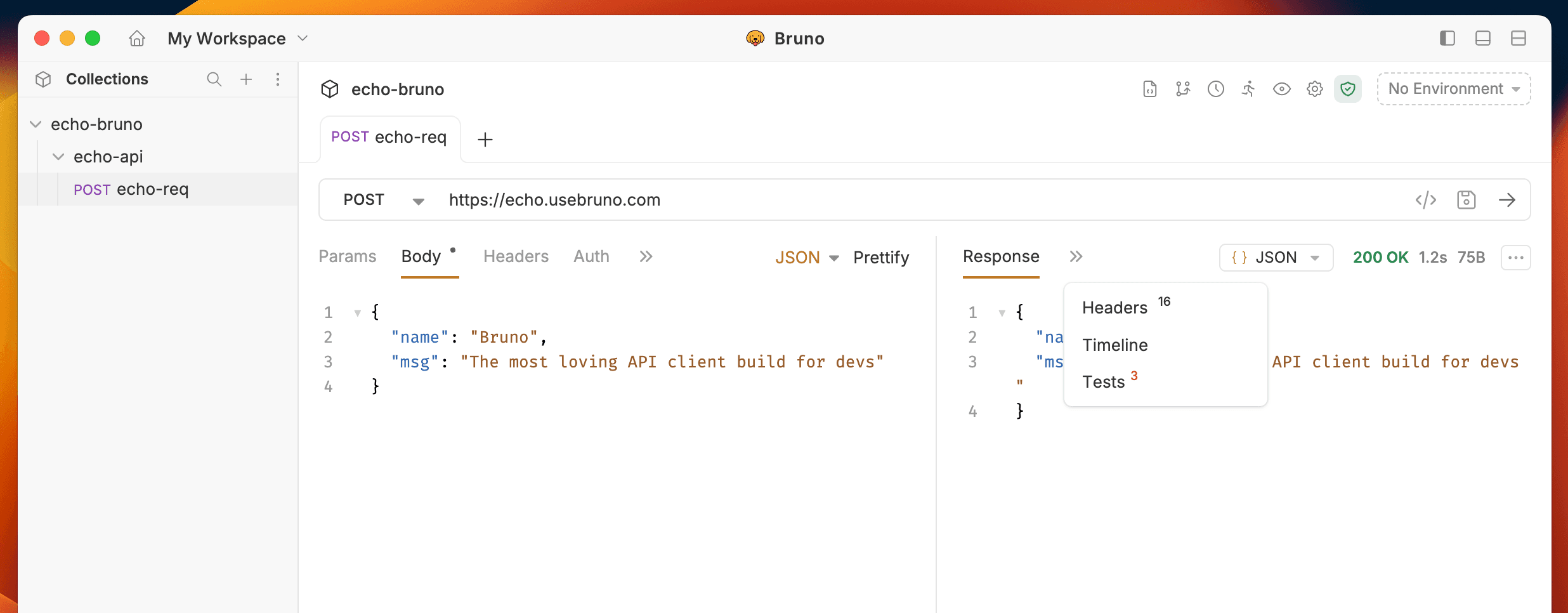
After executing a request, the response panel provides detailed information on the API’s response. It shows the response body, headers, status code, and other relevant data. You can also search within the response using the cmd+f or ctrl+f keyboard shortcut.
Data Type Selector
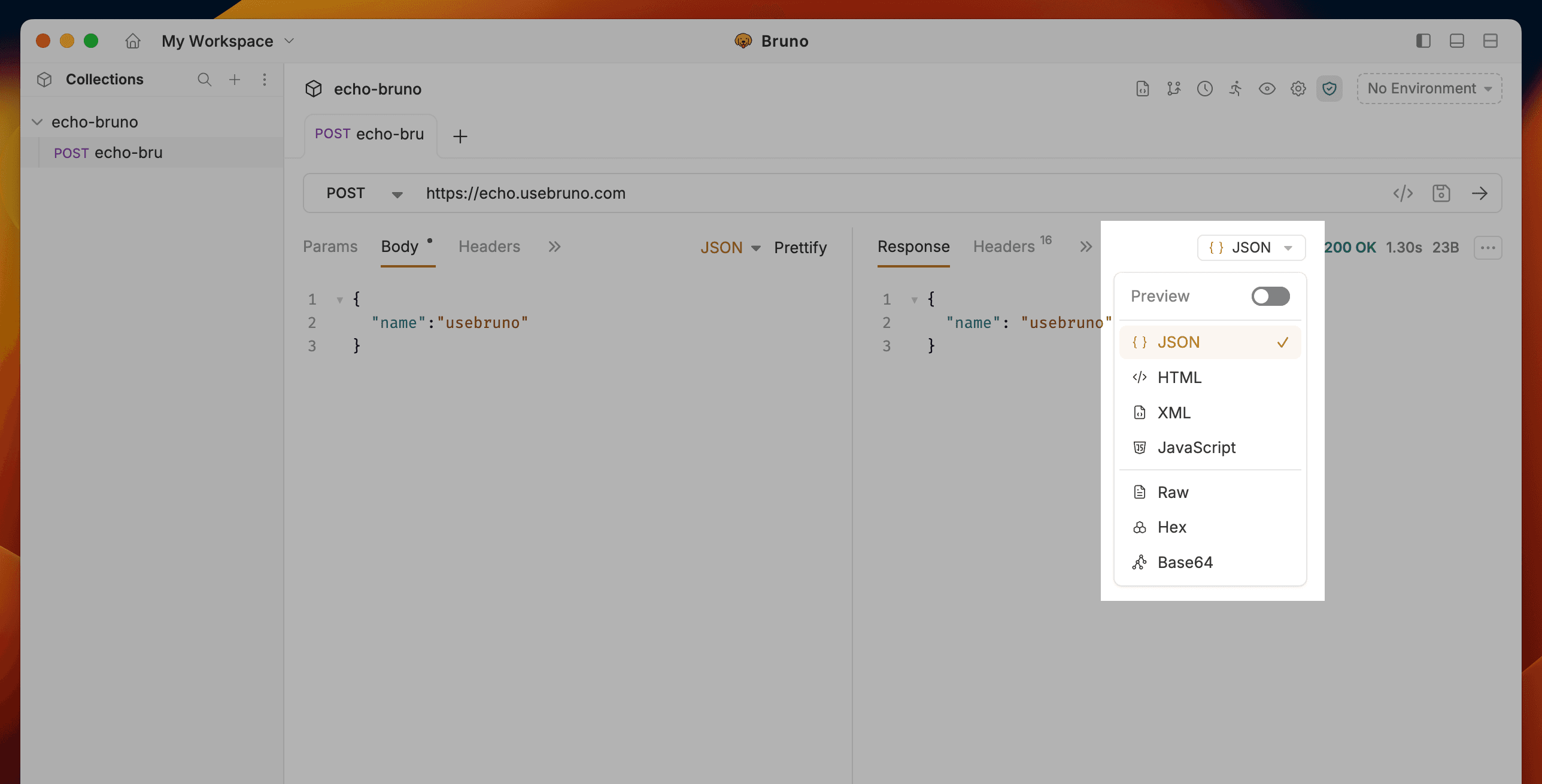
Bruno provides a powerful response format selector that allows you to view API responses in different formats, making it easier to inspect and analyze response data. This feature includes both an Editor view for viewing formatted code and a Preview view for visualizing the response content.
Headers
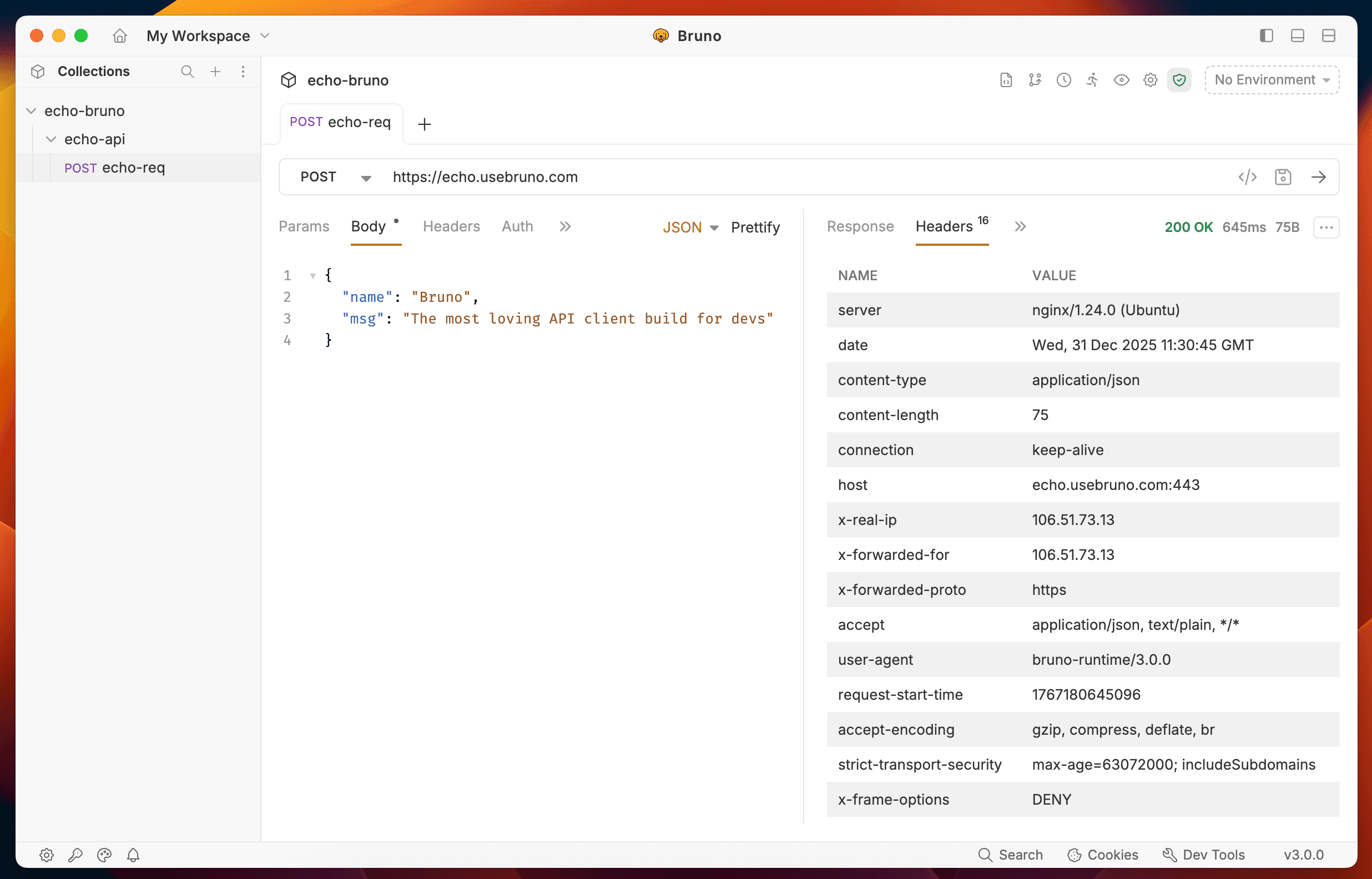
The request headers are displayed to show what was sent to the API. This can help in debugging and understanding the context of the request.
Timeline
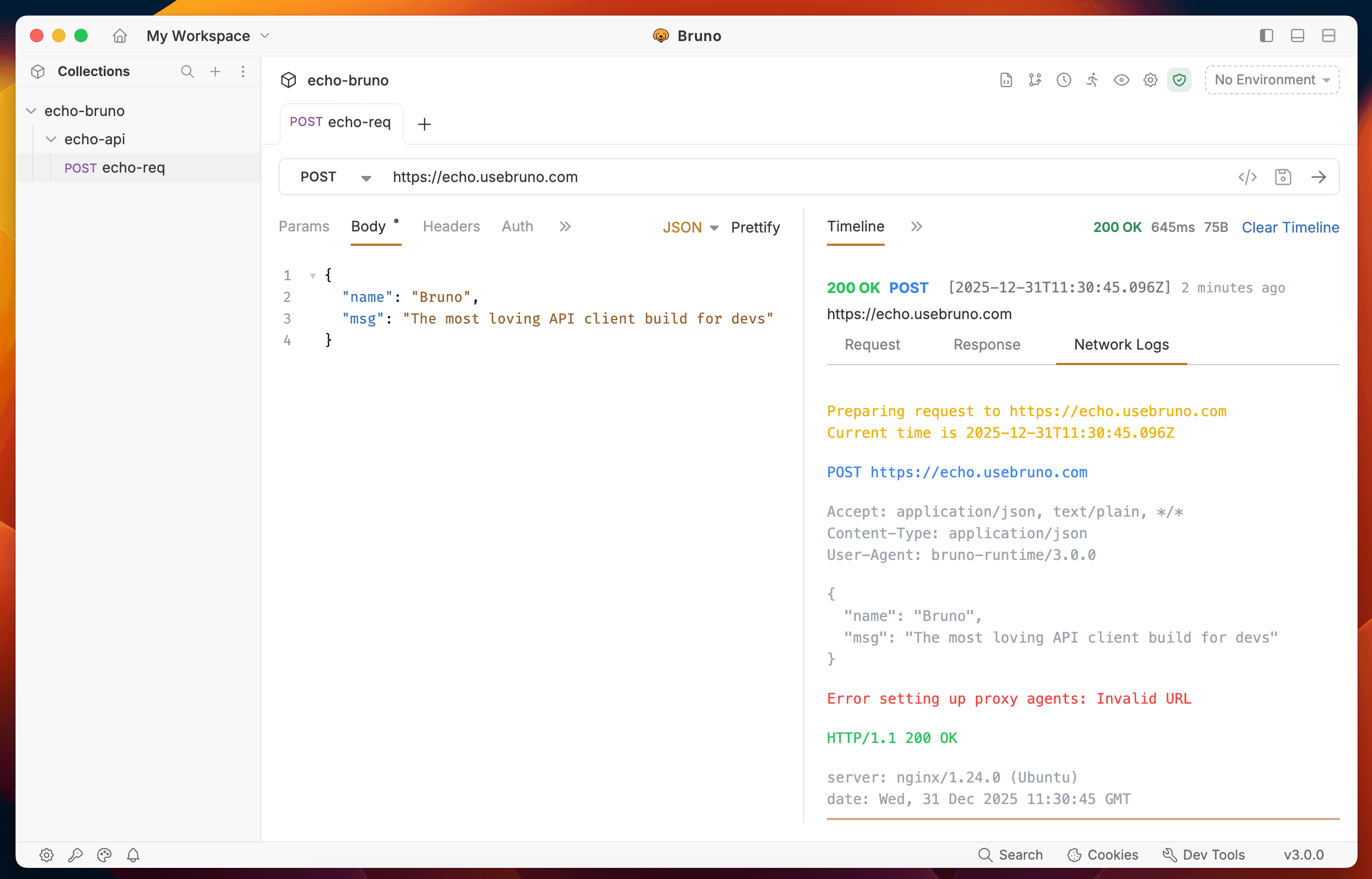
The response timeline displays the response headers sent along with the request body, including details such as content-type, date, cache, and connection status.
Response Actions
Bruno provides multiple options to manage your response data, including saving as examples, downloading to files, copying, and clearing the response panel.
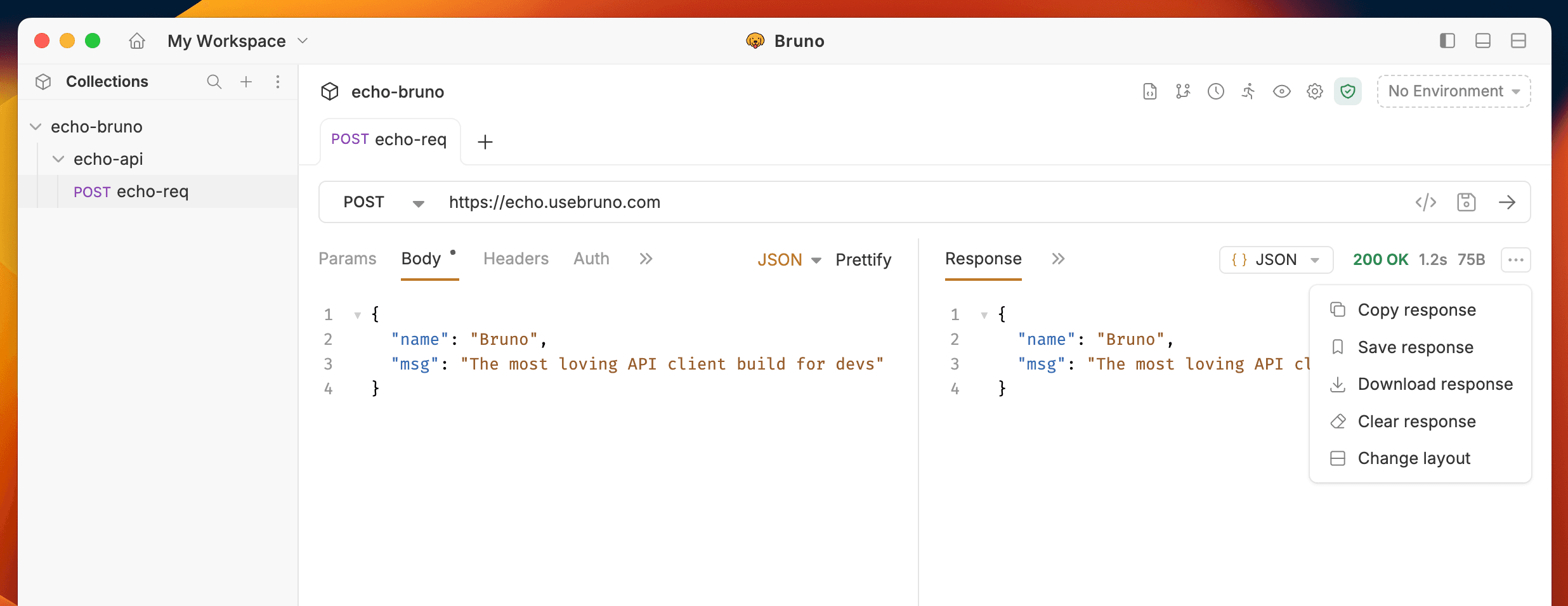
- Save as Example - Save the response as a sub-request under your main request for documenting different API behaviors and scenarios
- Download Response - Export the response data to a file in various formats such as HTML
- Copy Response - Quickly copy the response data to your clipboard for use in other applications
- Change Layout - Switch between different layout views to customize how the response is displayed
- Clear Response - Reset or clear the response data from the panel
Learn more: Response Examples