Provider Guide
This guide covers Git operations for team members who create and share collections.
Free Features
The following features are available in the free version starting from Bruno 3.0.0.
Initializing Git
Initializing Git in Bruno is the first step towards managing your API collections with version control. It’s easy and quick to set up. Follow the steps below to initialize Git.
- Launch the Bruno app.
- Navigate to the collection you want to initialize with Git.
- Click on the Git Icon in the top-right corner of the navbar.
- Click the Initialize button to set up your collection with Git.
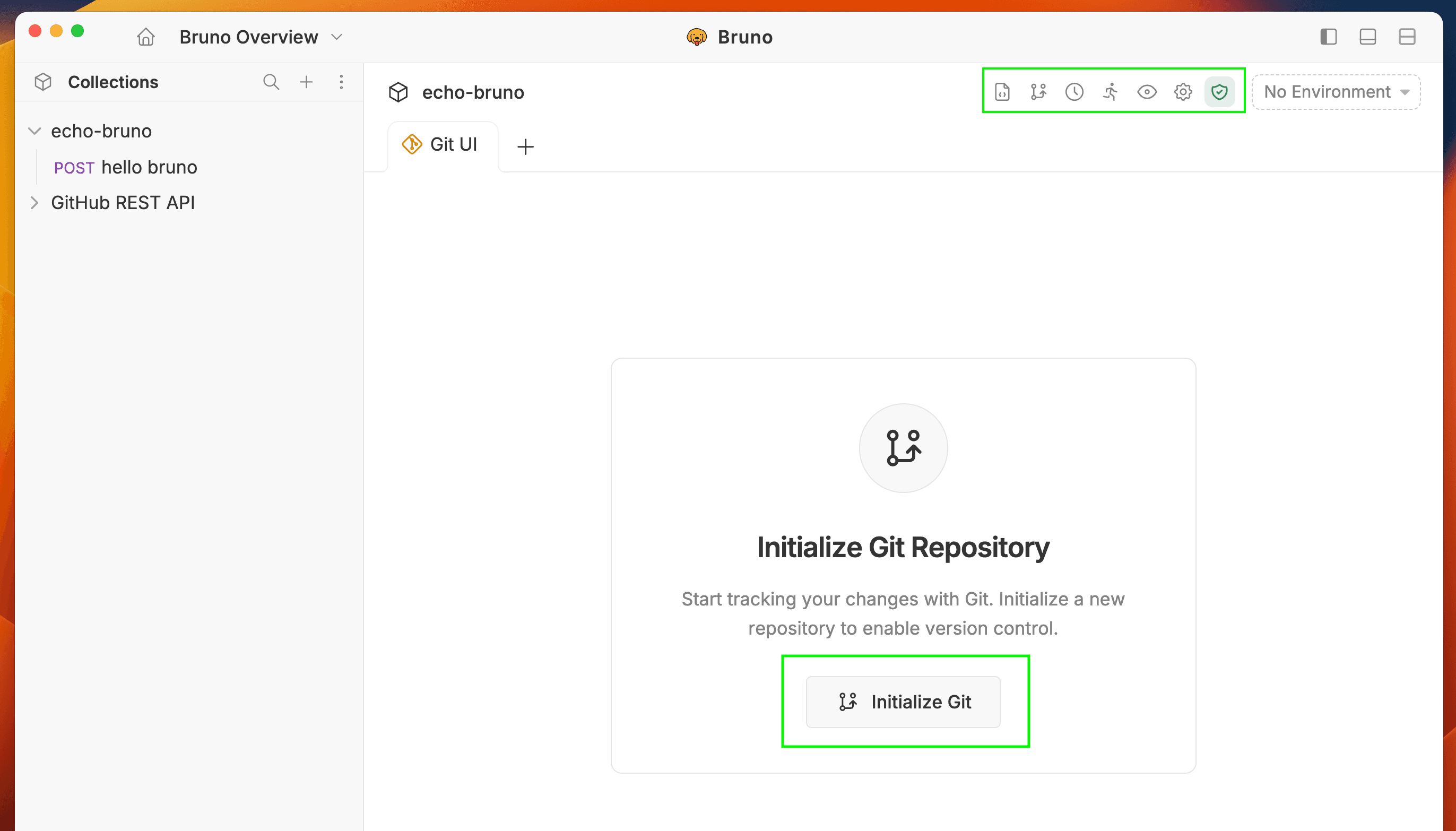
This allows you to perform other Git operations such as viewing diffs, pulling changes, and more.
Viewing Diffs
Before committing changes, you can view the differences between your local changes and the previous version.
- Go to Git UI.
- Click on any modified file to see the diff view.
- Review the changes highlighted in the diff viewer.
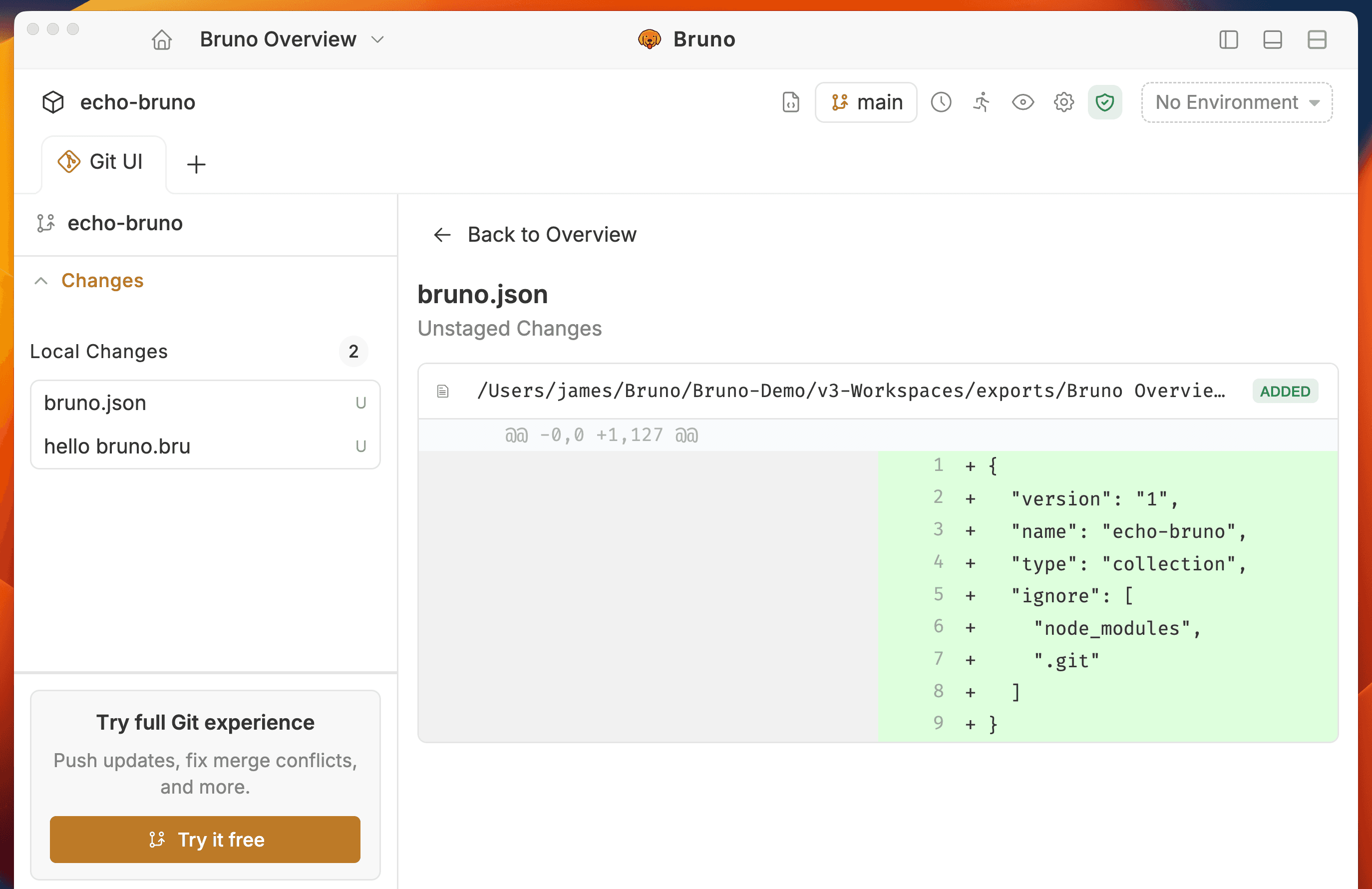
This helps you understand exactly what has changed before deciding to commit.
Pro & Ultimate Features Premium
The following features require Pro or Ultimate editions.
Connecting to Remote Repository
Once you have initialized your collection, the next step is to connect it to a remote Git repository. You can directly connect to a remote repository from Bruno using the Git GUI feature.
To connect Bruno to GitHub, you need to set up either an SSH key or a Personal Access Token (PAT) on GitHub. Follow this official GitHub guide to set it up.
- Create an empty Git repository on GitHub.
- Open Git initialized Bruno collection.
- Click on Quick Links (bottom-left corner).
- Select Remotes from the dropdown.
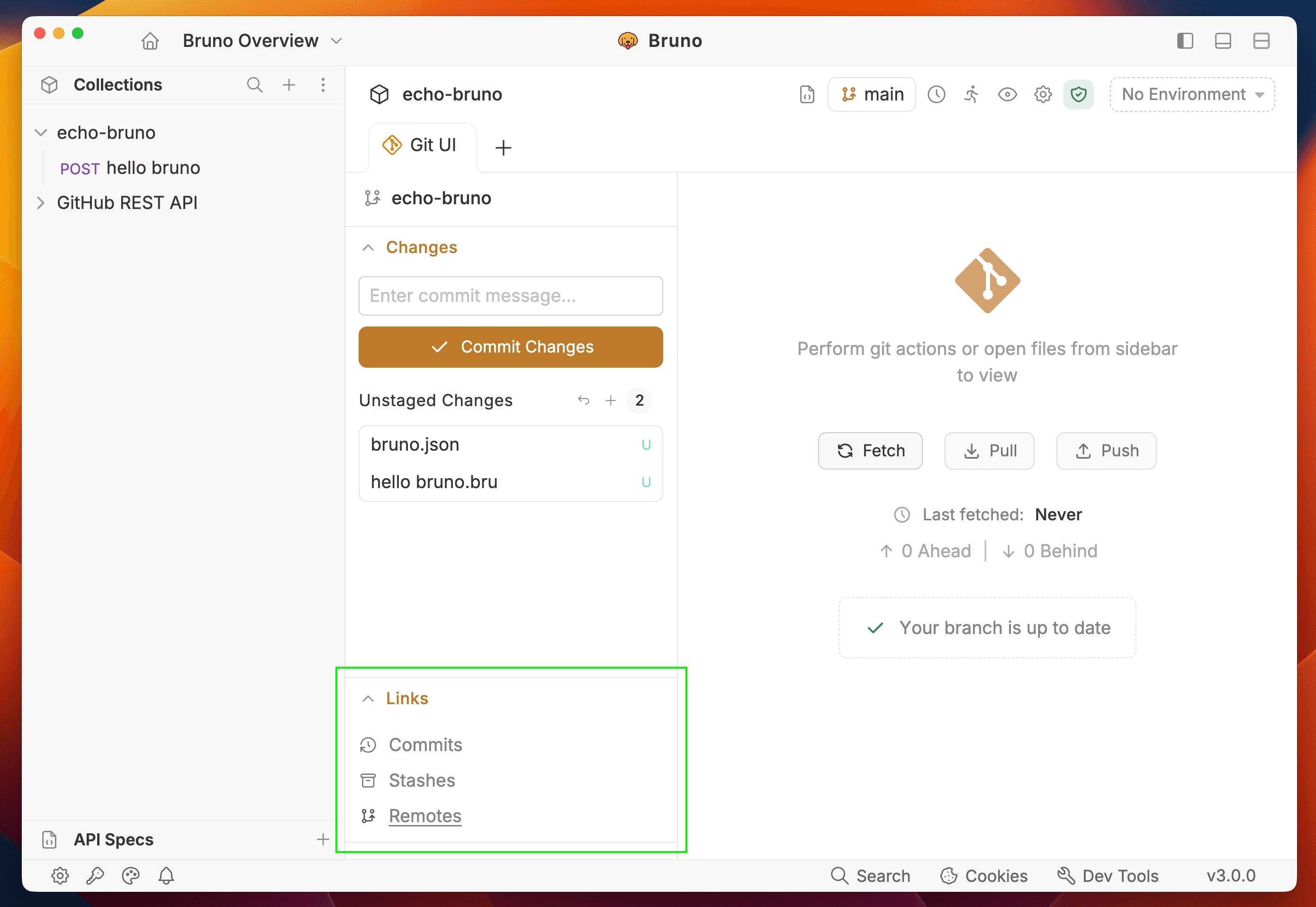
- Click the Add Remote button.
- Enter Remote Name and URL (HTTPS or SSH) and click Save.
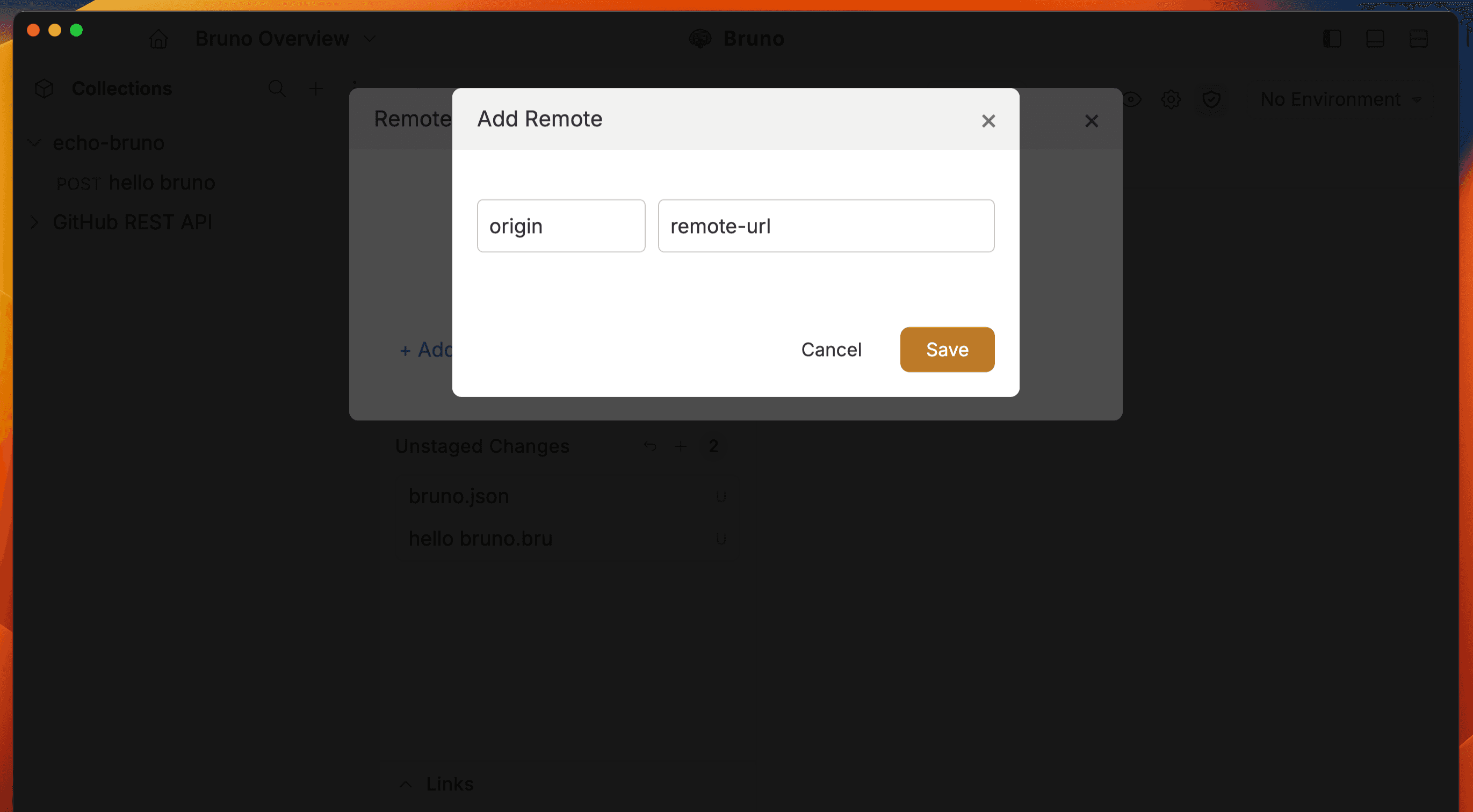
After completing the above steps, your collection will be connected to GitHub. We have to add and commit (see below) some changes to push the collection to GitHub.
Once your collection is connected to the remote repository, you can manage it directly from the Bruno app.
Adding and Committing Changes
Once you’ve made changes to your collection in Bruno, you can easily commit those changes using the Git UI. This allows you to track changes and collaborate with your team efficiently.
Follow these steps to add and commit changes:
- Go to Git UI.
- Click the Add Icon to stage your changes.
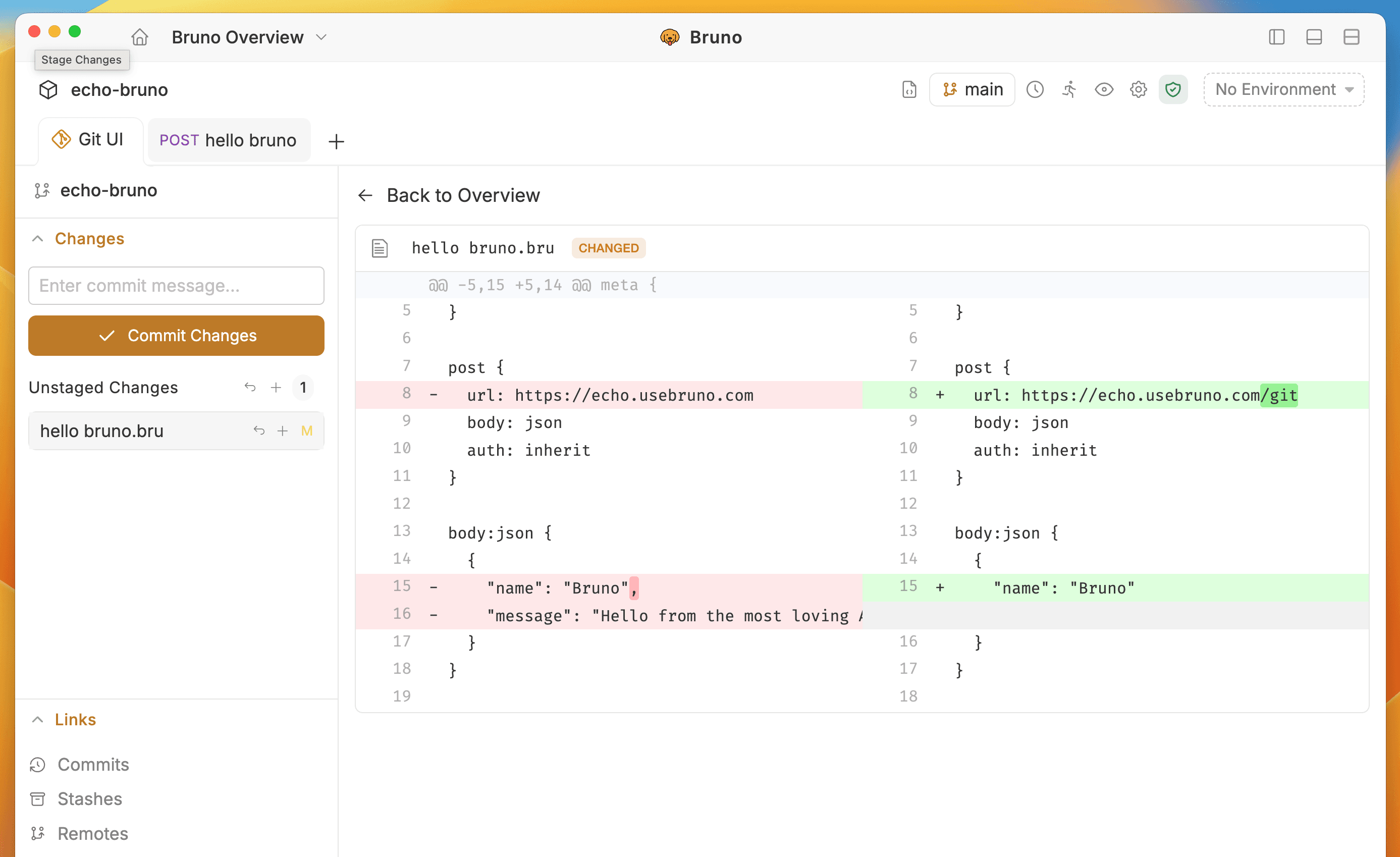
- Click the Commit Changes button.
- Write a commit message and click Commit.
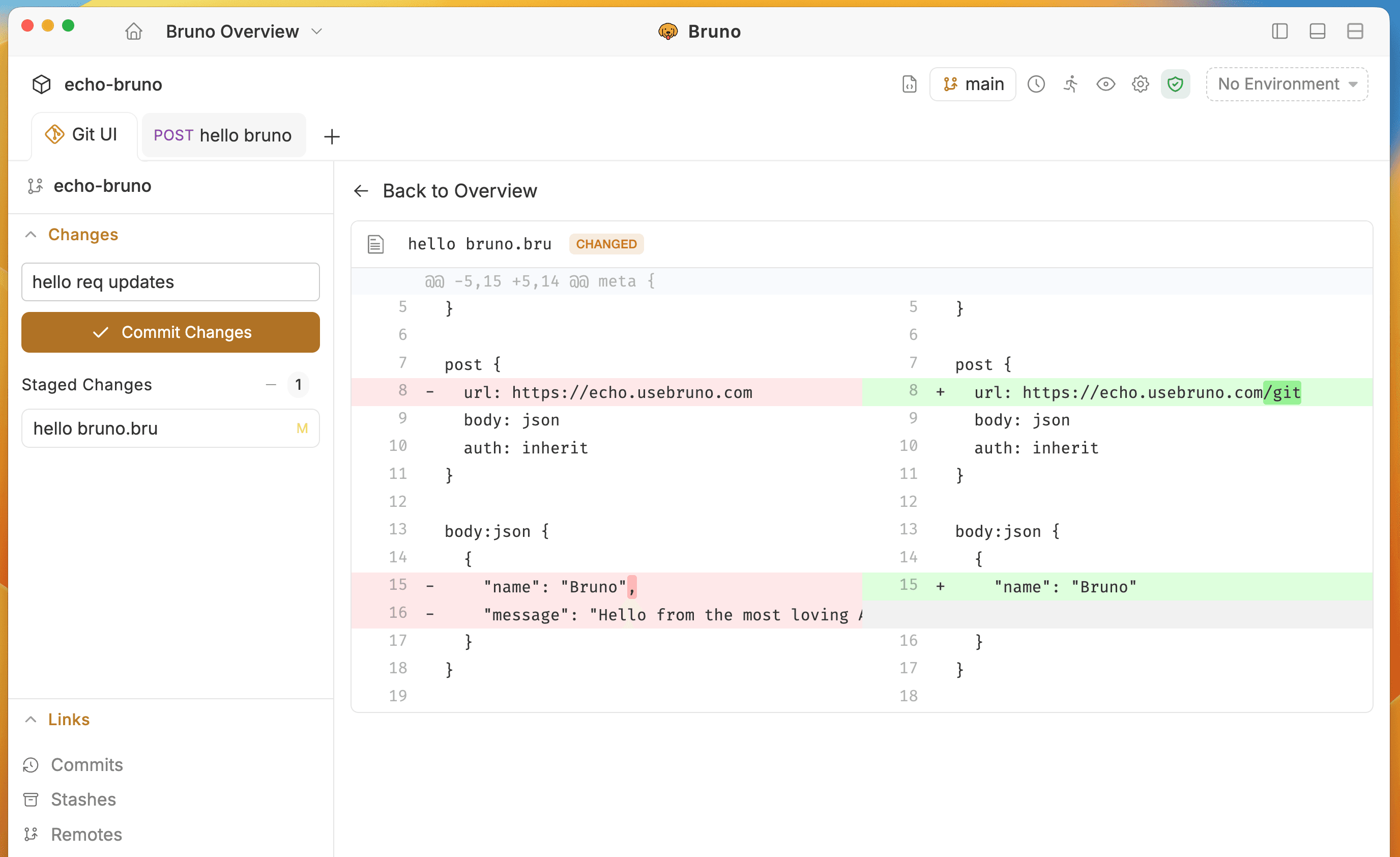
You can commit all changes in a single click by pressing the Add All Changes button.
By following these steps, your changes are now committed and tracked in Git, ready to be pushed or shared with others.
Pushing Changes
The GUI-based Git integration in Bruno allows both engineering and non-engineering teams to work together in a fast, efficient, and accurate manner. This integration ensures that your collections remain consistently up-to-date across all team members.
Before you can push or pull changes, ensure that the remote repository is linked to your project.
Push your local changes to the remote repository with just a few clicks.
- Go to Git UI and click the Fetch button.
- Click the Push button.
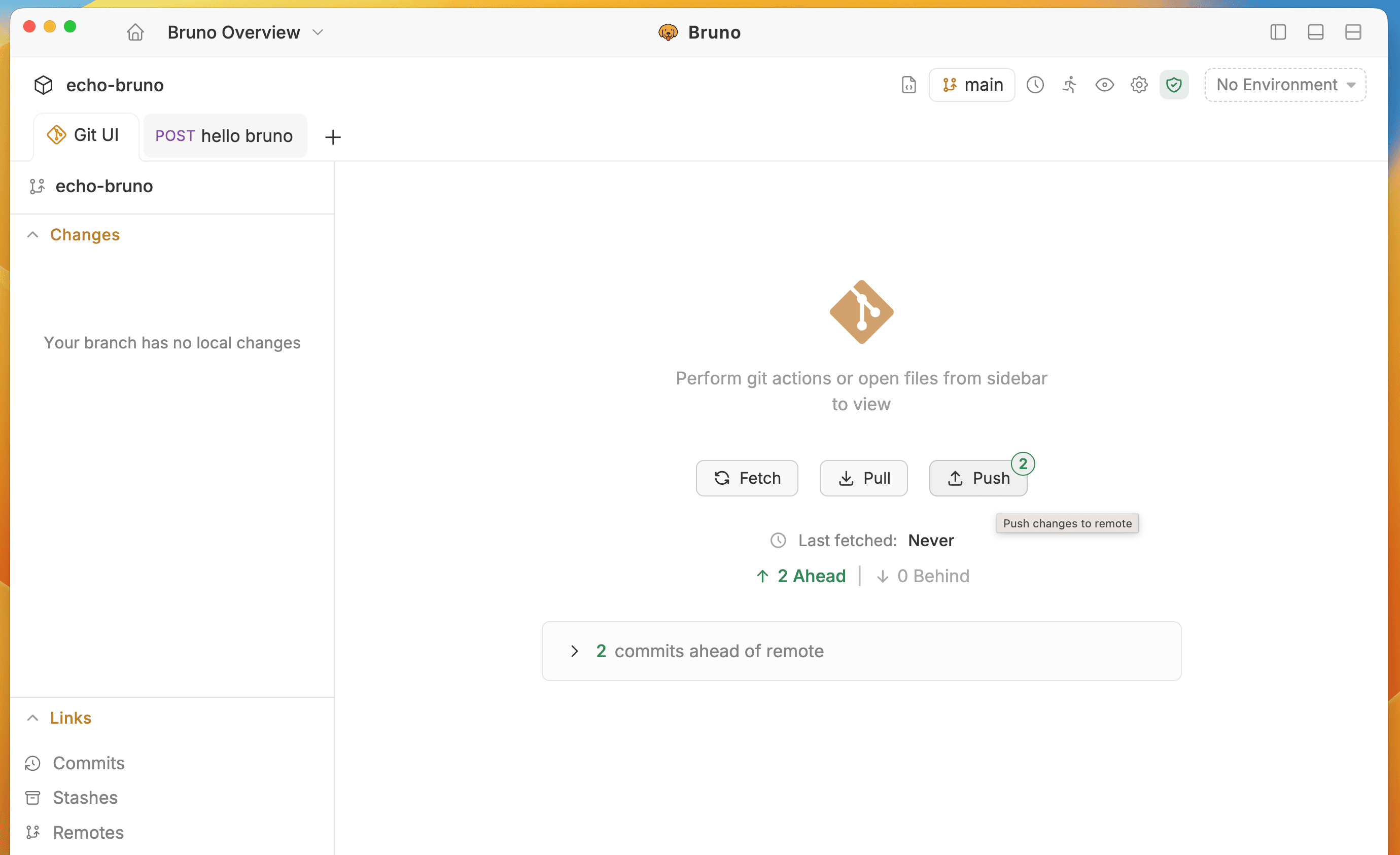
Now you can see all your local changes pushed to the remote repository.
Follow the Consumer guide to learn about the pulling changes feature.
Branch Creation and Checkout
With branches in Bruno, you can manage your code effectively by isolating different features or tasks.
Creating Branches
Follow the steps below to create branches in Bruno.
- Go to Git UI.
- In the bottom left corner, click on main (or the default branch name).
- Enter a Branch Name.
- Click the Create branch button.
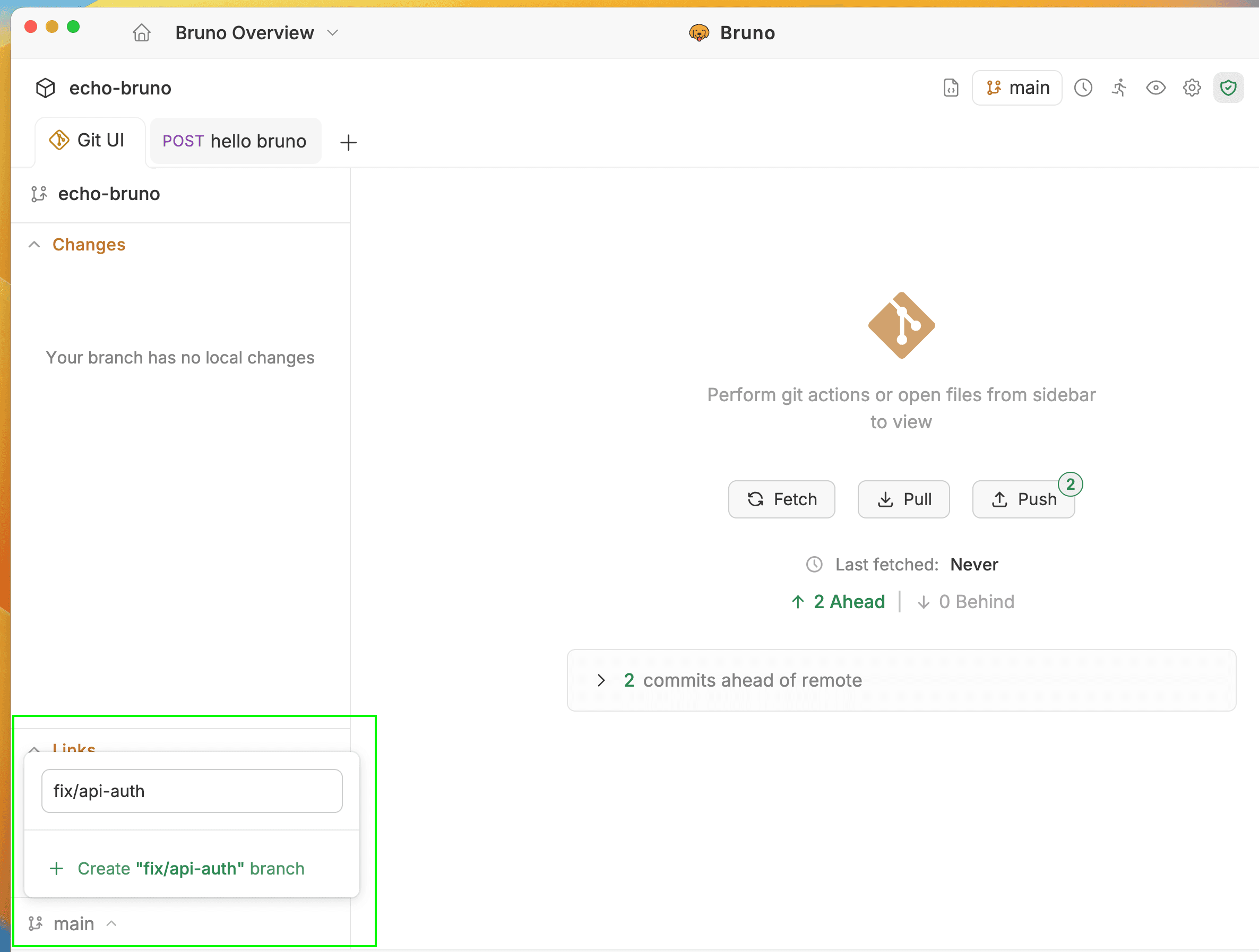
Once the branch is created, you can start making changes to the branch.
Branch Checkout
- Click on main.
- Select the branch you want to switch to.
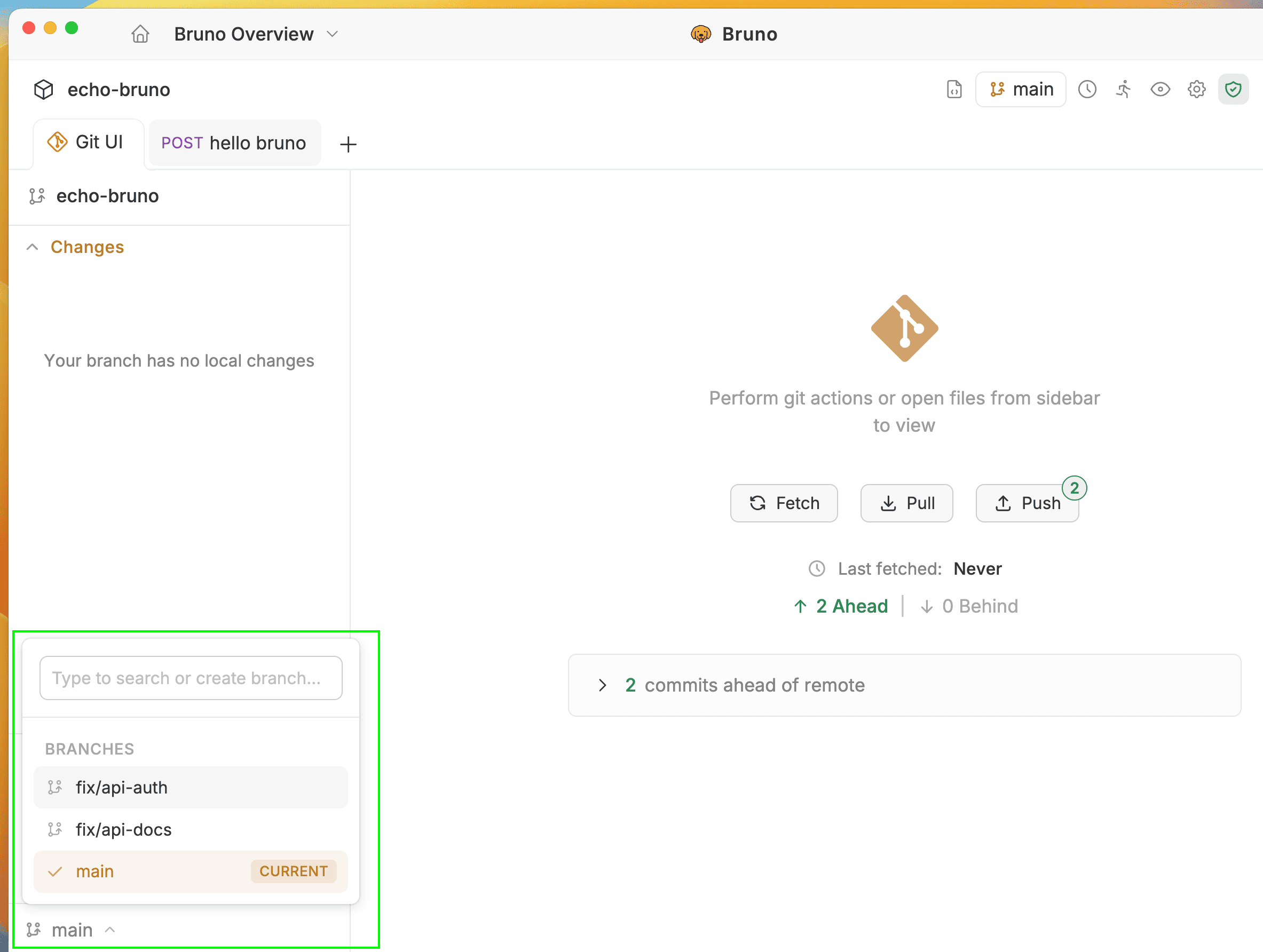
- Now you’re switched to your selected branch.
Stash Changes
Stashing allows you to temporarily save your uncommitted local changes (both staged and unstaged modified tracked files) and revert your working directory to a clean state matching the last commit. This is especially useful for quickly switching context or handling urgent tasks without having to commit unfinished work.
- Go to Git UI.
- When you have unstaged changes, click on Stashes.
- Enter a Stash Message and click the Stash files button.
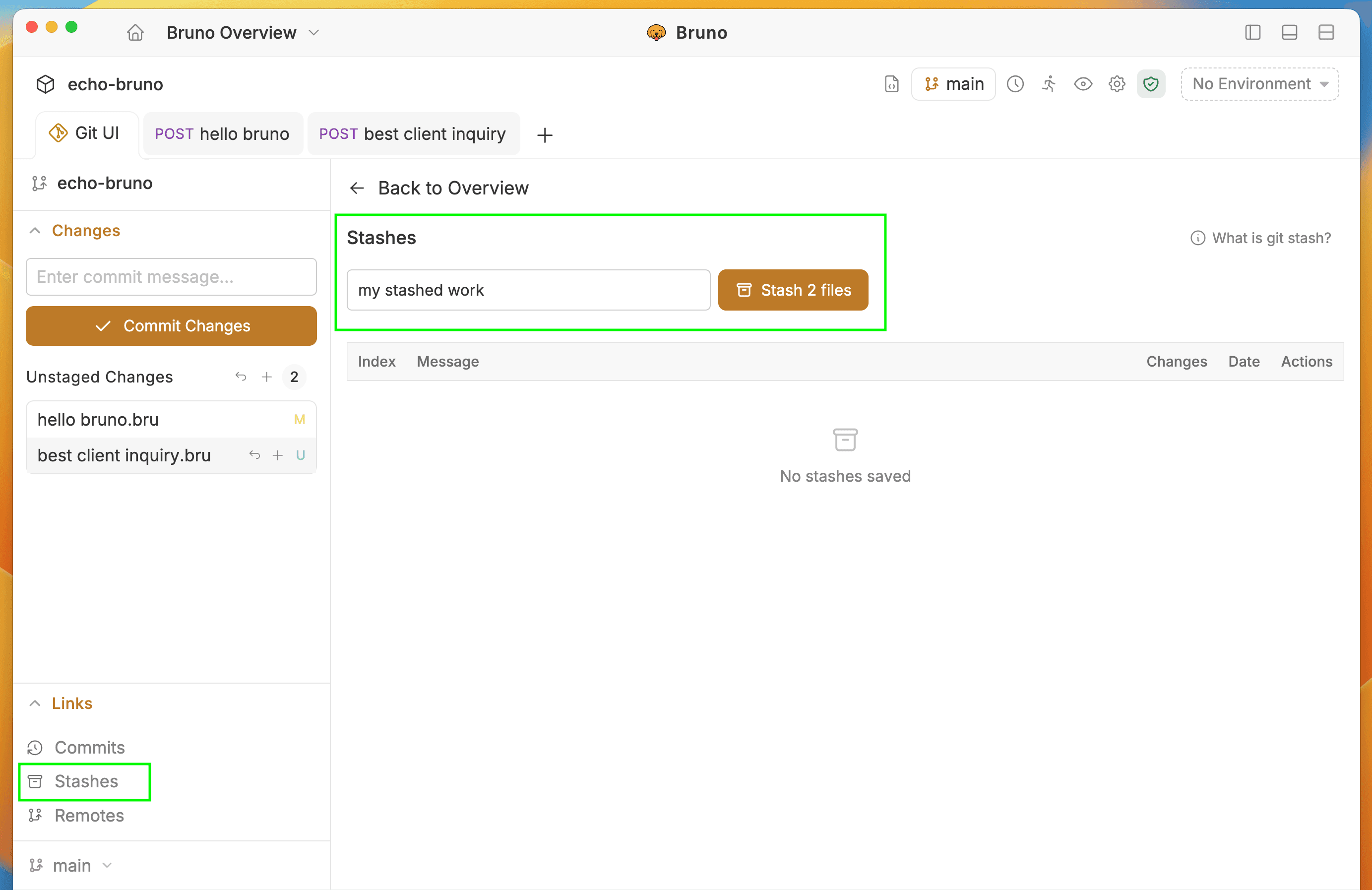
- Your local changes are saved temporarily so you can work on something else or switch branches without losing your changes.
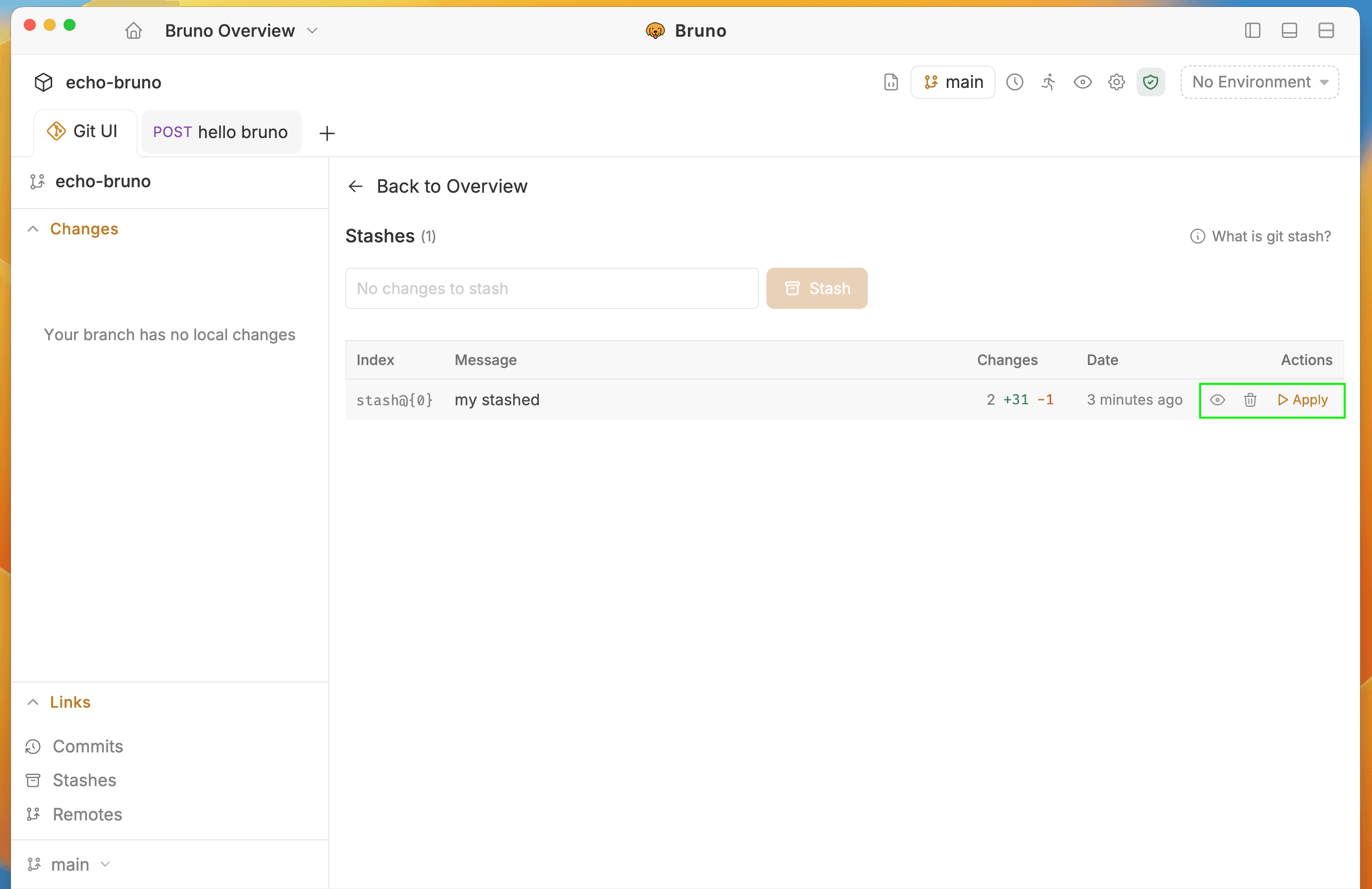
- Stashes can be viewed, deleted, or applied to restore your changes later.
Merge Conflict Resolution
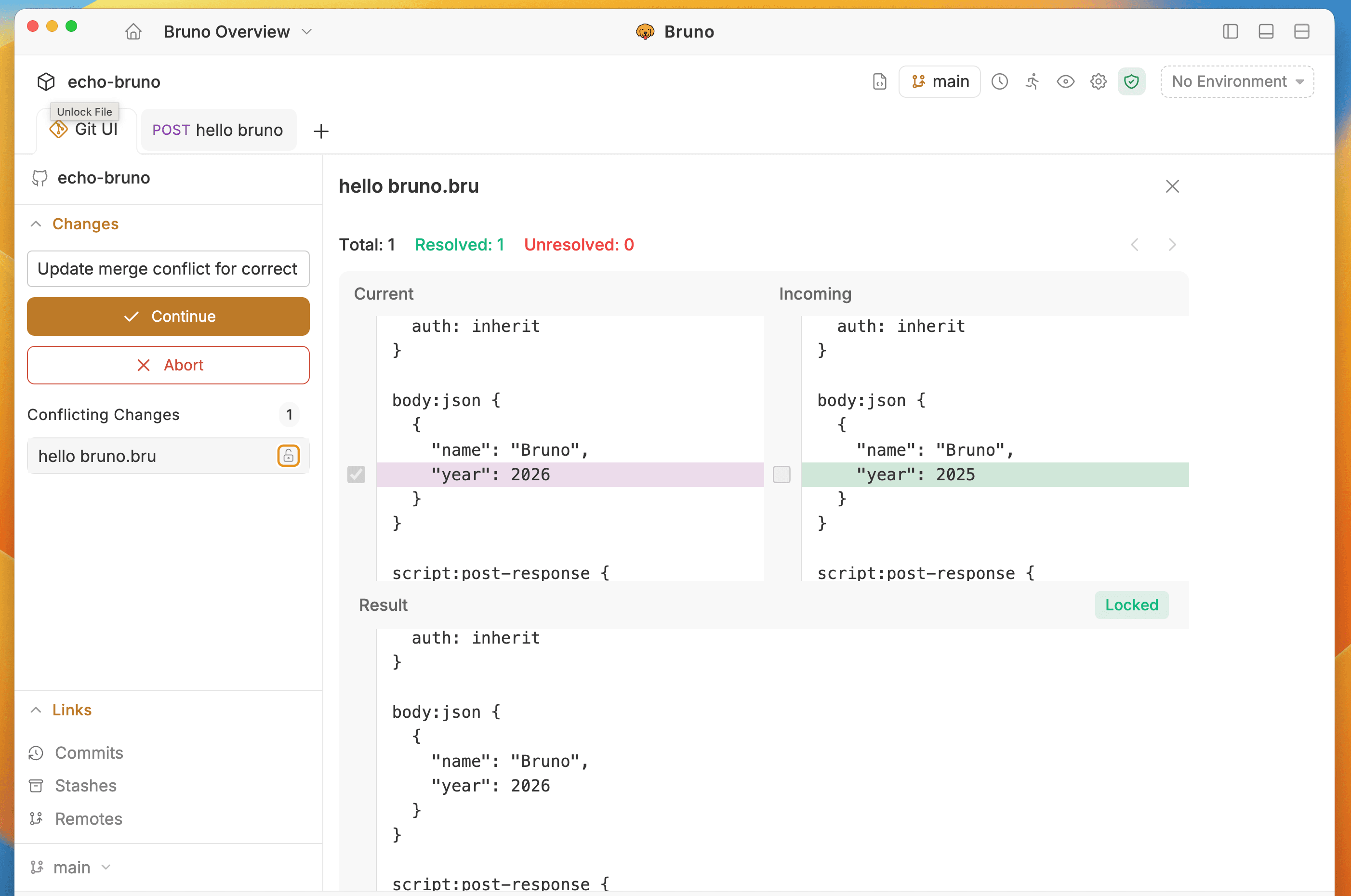
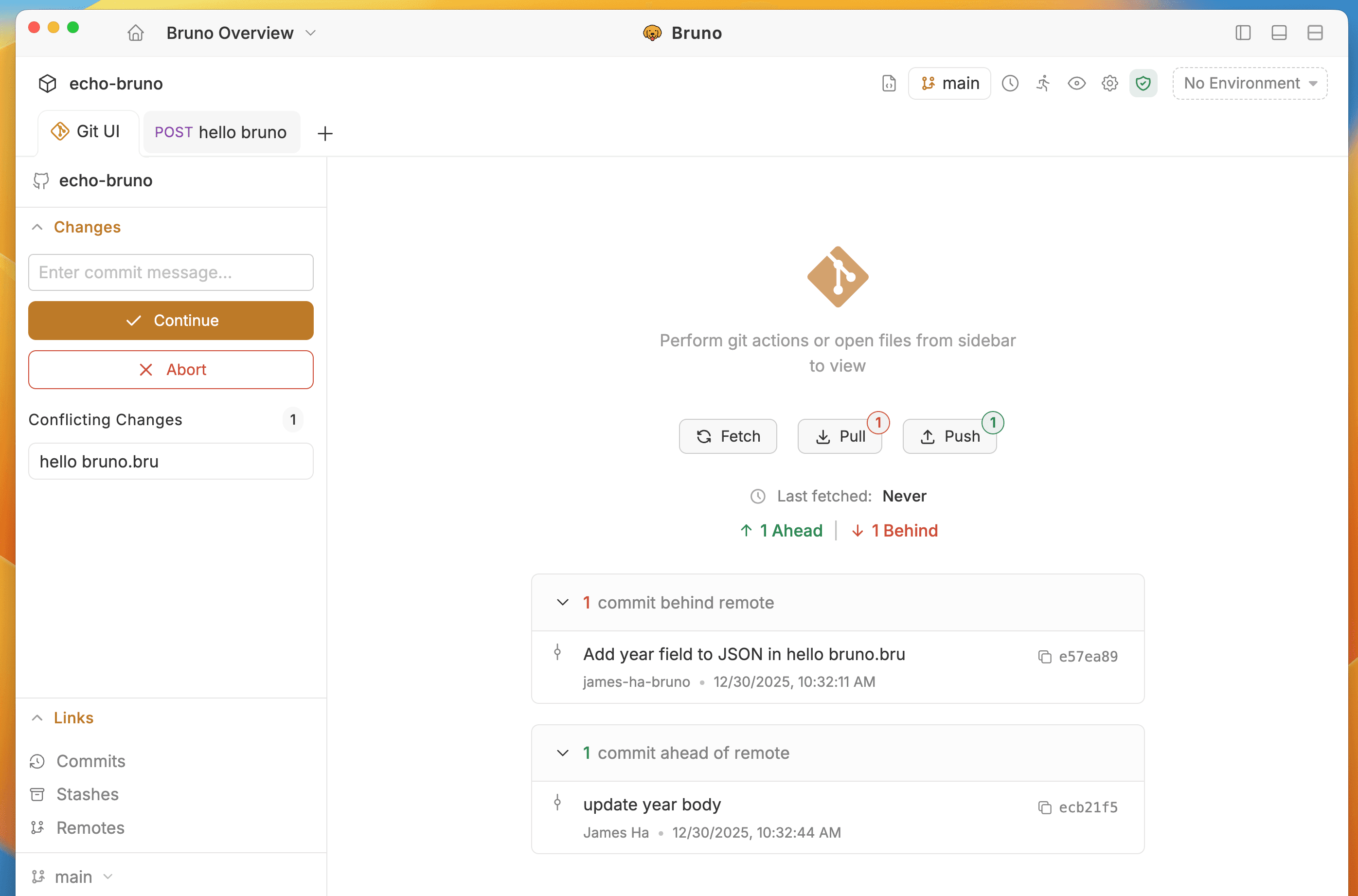
When conflicts arise during pull or stash operations, Bruno provides a visual conflict resolution interface.
Conflict Detection
When conflicts are detected, Bruno provides information and options to resolve conflicts:
- Commits behind and ahead of remote
- Conflicting changes identified
- Abort - Abort the operation and restore previous state
Visual Conflict Editor
The conflict editor provides:
- File List - Shows all conflicted and non-conflicted files with status indicators
- Diff View - For each conflict, choose to:
- Accept Incoming (remote version)
- Accept Current (local version)
- Accept Both (merge both versions)
Once all conflicts are resolved, enter a commit message and click the Lock icon to complete the merge.